JustForex
Loading recent posts...
Showing posts sorted by relevance for query Windows 8. Sort by date Show all posts

Oct 9, 2011

RAMorexic Windows 8 Runs on 64MB of Memory

Cutting down the overall runtime memory requirements of the core system was one of the key engineering tenets of building Windows 8, according to Steven Sinofsky, President, Windows and Windows Live Division.

As such, not only is Windows 8 tailored to the same system requirements as Windows 7, but it’s also sporting a consistent collection of memory usage optimizations set up to boost responsiveness on a range of devices, including those equipped with SoC architectures, get concurrent applications running smoothly, and even prolong battery life by minimizing energy consumption. 

“We made hundreds of specific changes to minimize OS memory use in Windows 8,” revealed Bill Karagounis, the group program manager of the Performance team. 

I had planned to write an entirely different piece today, but after seeing the latest B8 blog post, I had to do an uncomplicated test focused on running Windows 8 in a RAM-deprived scenario. 

The goal of the test was fairly simple, get Windows 8 to boot and run sufficiently to take a screenshot of Task Manager revealing an amount of random access memory in use inferior to the recommended amount required to run Windows XP, but even as low as the absolute minimum. 

Windows 8 requires at least 1GB RAM for the 32-bit (x86) version and 2GB RAM for the 64-bit (x64) flavor - I used a x86 copy of Windows 8 Developer Preview Build 8102 Milestone 3 (M3). The software giant reveals that XP needs “at least 64  
megabytes (MB) of RAM (128 MB is recommended).” But first thing’s  
first…

Windows 8 memory optimizations

“Windows 8 has a better scheme for the prioritization of memory allocations made by applications and system components. This means that Windows can make better decisions about what memory to keep around and what memory to remove sooner,” Karagounis explained.

What the granular prioritization of memory does is that it allows Windows 8 to grab resources from running apps and re-allocate them without impacting responsiveness. This is made possible through enabling programs to allocate memory as low priority, which tells the OS that it can be used for more stringent needs, if they come about. 

Another example of RAM usage optimization is related to resolving the issue of duplicate content through memory combining. Windows 8 combines redundant copies of memory for certain apps, freeing up RAM.

“Memory combining is a technique in which Windows efficiently assesses the content of system RAM during normal activity and locates duplicate content across all system memory. Windows will then free up duplicates and keep a single copy,” Karagounis said. 

“If the application tries to write to the memory in future, Windows will give it a private copy. All of this happens under the covers in the memory manager, with no impact on applications. This approach can liberate 10s to 100s of MBs of memory (depending on how many applications are running concurrently).”

Another way that Windows 8 reduces memory usage is by consolidating frequently accessed portions of RAM. As much as tens of MB can be freed up on an average computer just because the next major iteration of Windows does a better job at re-consolidating memory that’s referenced less frequently, providing additional RAM resources to other programs that might need them.

Optimizations were also made at service-level, the Redmond company explained. 13 services in Windows 8 that were running all the time were removed, and additional services transitioned to manual start, while others will only start on demand. 

The fact that the desktop only loads if users actually need to use it or one of the non-Metro programs also helps free memory. 

“From a memory perspective, we’ve taken advantage of the fact that there will be some set of devices on which users will stay in the immersive, Metro style UI almost all the time. In this instance, Windows 8 will only initialize OS components unique to the desktop environment when necessary. This is another source of memory savings, approximately 23MB right now,” Karagounis added. 

Windows 8 on 128MB RAM

Yes, it works. Rather well actually. The Windows 8 virtual machine booted fast, and the preliminary stages of the platform, the lock screen and sign-in also succeeded one another rapidly. Swapping the Start Screen with the desktop and vice versa represented a seamless transition, and launching Task Manager took only a few seconds. 

I'd say that Windows 8 on 128MB of memory is barely usable, especially since I was even able to run Internet Explorer 10 (IE10) Platform Preview 3. PP3 ships exclusively with the Windows Developer Preview. However, I wasn't able to run Metro apps, at all, try as I might. 

You have to be kidding me! 

And then I thought to myself, "just what if?" and had to try getting the amount of memory reduced even further. So I did just that. With the Windows 8 virtual machine powered down, I halved the RAM down from 128MB and then launched the OS. 

Much to my surprise, it managed to get to the lock screen in record time. Windows 8 boots amazingly fast even on an abysmal 64MB of memory. So far so good, especially considering that I wasn't even expecting the operating system to start at all. 

I slid the lock screen out of the way and entered my password. The next stage took a bit of patience on my behalf. But since Windows 8 did not appear to crash or to stop responding, I stuck by it. 

Approximately 10 minutes later I got to the Start Screen full of beautiful tiles for Metro apps. As expected, Windows 8 was not exactly usable at just 64MB RAM. But then again, you can't take out half the engine of a car, put bike pedals in, and expect it to run under normal parameters. 

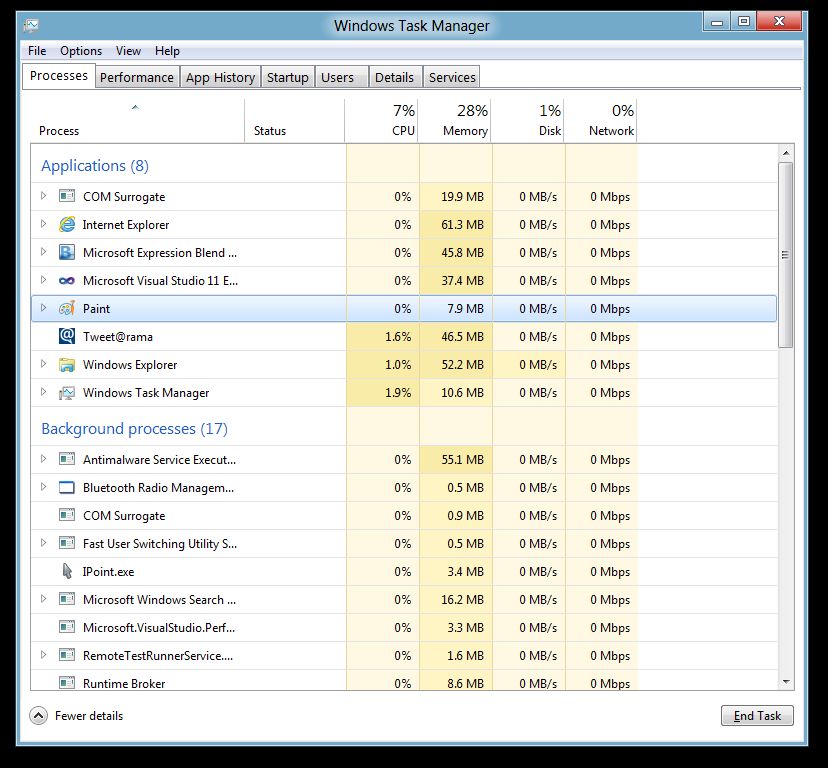
The fact that it was running was nothing short of a memory optimization miracle. And I knew I was stretching it pretty thin, but I just had to launch the desktop. I figured you guys needed some sort of proof that Windows 8 was indeed running on 64MB RAM, and what better example than a screenshot of Task Manager?

Again, much to my surprise, the Windows 8 desktop launched quite fast. And again, this was extremely hard to believe when considering that all it has at its disposal are 64MB RAM. Launching Task Manager took some time, I won't lie. But once it was up and running, the tool was surprisingly responsive. Jumps between Task Manager tabs were performed rapidly and without any issues. 

Check the screenshots accompanying this article in order to see that Windows 8 Developer Preview Build 8102 M3 is indeed running inside a virtual machine with just 64MB of memory allocated to it. 

Just to make it clear, Windows 8 on 64MB RAM is not even close to barely usable, but the fact that it does run is enough to make such an experiment worthwhile. Still...


Windows 8 is RAMorexic. The level of memory usage optimization is amazing, just as is the minimum amount of RAM that Windows 8 is capable of running on.

Windows 8 Developer Preview Build 8102 Milestone 3 (M3) is available for download here.

Apr 17, 2012

Microsoft Unveils Four Windows 8 SKUs


Windows 8, the next version of Microsoft’s popular operating system, will arrive on shelves with increased flexibility to fit user’s needs, and this applies to its various editions as well. 

Following a long series of rumors on the number and variety of Windows 8 SKUs that Microsoft will make available later this year, the Redmond-based software giant stepped up and provided us with all the necessary details on the matter. 

First, we should note that Windows 8 has been confirmed as the official product name for the upcoming x86/64 editions of Windows.

There will be two Windows flavors loaded on all PCs and tablets that are powered by x86 processors (both 32 and 64 bit), namely Windows 8 and Windows 8 Pro.

The latter was meant to enable tech enthusiasts and business/technical professionals to take advantage of a wider range of Windows 8 technologies. It packs encryption, virtualization, PC management and domain connectivity atop Windows 8’s features. 

“Windows Media Center will be available as an economical “media pack” add-on to Windows 8 Pro. If you are an enthusiast or you want to use your PC in a business environment, you will want Windows 8 Pro,” Microsoft’s Brandon LeBlanc explains in a blog post.

“For many consumers, Windows 8 will be the right choice. It will include all the features above plus an updated Windows Explorer, Task Manager, better multi-monitor support and the ability to switch languages on the fly, which was previously only available in Enterprise/Ultimate editions of Windows,” he continues.

Along with these, there will be a Windows 8 edition specifically designed for those enterprise customers with Software Assurance agreements. Dubbed Windows 8 Enterprise, it will include Windows 8 Pro’s features, along with specific features for IT organization. 

The Enterprise flavor of Windows 8 will arrive with enhanced features for PC management and deployment, advanced security, virtualization, new mobility scenarios, and more. 

It should also be noted that Microsoft plans the release of local language-only editions of Windows 8 for China and some other emerging markets as well. 

The fourth Windows 8 SKU is Windows RT, which was previously referred to as Windows on ARM or WOA. It will be available only preinstalled on tablets and PCs powered by ARM processors. 

Windows RT will arrive with touch-optimized desktop versions of Microsoft’s next flavors of Word, Excel, PowerPoint, and OneNote. 

Applications designed for it make use of the new Windows runtime, or WinRT, which was made official in September last year. It opens the door to “a new generation of cloud-enabled, touch-enabled, web-connected apps of all kinds.”

Additional info on the various Windows 8 editions, such as details on pricing and limited-time programs and promotions available for users will be unveiled in the next months. 

You can have a look at the main differences between Windows 8, Windows 8 Pro and Windows RT in the aforementioned blog post.

Windows 8 Consumer Preview is available for download via this link.


Oct 2, 2011

Installing Windows 8 Build 8102 M3 Screenshot Gallery

While Microsoft has not made public any new statistics related to the number of Windows Developer Preview downloads, beyond the 500,000 that were grabbed by early adopters in the first day after Windows 8 Build 8102 Milestone (M3) went live, I have a feeling that millions have already jumped at the chance to play with the next version of the OS. 

Having tested Windows 8 Developer Preview myself for over two weeks now, I thought I’d share some of my experiences, and what better way to start than with the installation. 

Check out the set of screenshots included below, they’ll help you get a feeling of the steps needed to be taken in order to deploy this early development milestone of Windows 8. 

The process is extremely simple, and virtually everyone can install Windows 8. But there are a few things that need to be stressed so that even end users can avoid any potential issues. 

Clean install on a dedicated computer or virtual machine deployment

The software giant would tell you that the best way to go is with installing Windows 8 on a dedicated machine, since virtualization technology is bound to impact the overall user experience by offering reduced performance, UI responsiveness, inferior graphics, well, you get the idea. 

My take is that both clean installs and virtual deployments are fair game, and that early adopters should test Windows 8 Build 8102 M3 the way they want, not how Microsoft intends. 

Newer machines are the best choice for a clean install, in terms of dedicated machines. Testers will want Windows 8 to work just as Windows 7. Having deployed Windows 8 a number of times already and in a variety of scenarios, my two cents are that there’s a greater chance of coming across some sort of problem the older that the test machine is. 

Windows 8 might very well deliver extraordinary compatibility with and support for hardware and software solutions, but that’s yet to happen. It will most probably be true for the Release Candidate (RC) and RTM, but the Developer Preview is just an M3. Incompatibilities exist. Some drivers are not supported. Like as I said, use a recently released PC. 

Dedicated 

Since dedicated machines just for testing at not at the disposal of all users, the most common test scenario that I expect involves deploying Windows 8 on an existing Windows 7 PC in a dual boot configuration. 

It’s easy. No worries. Just make sure you have a free partition. At least 20GB if you’re going to test x64 (64-bit) Windows 8, or 16BG for the x86 (32-bit) version. This is really important as the installation process would fail unless these numbers are right. 

On an already portioned HDD, rightly click My Computer and select Manage – you need to have admin privileges. On the left hand side pane, select disk management. It might take a few moments for all the hard drive info to be displayed, Be patient. 

If you have a Basic disk than you can go ahead with the clean install. If the disk is dedicated, virtualization is the way to go for you. 

Let’s assume that your disk is Basic and that you have at least one partition which can be shrunk. Right click it and select Shrink Volume, and enter the equivalent of at least 20GB. I’d also do this even for x86 deployments, just to be safe. If you plan to use Windows 8 Build M3 extensively, then provide it with more disk space. 

When shrinking a volume, new, unallocated space results. Right click that and select to create a new simple volume, format it NTFS, a quick format will do just fine, allocate a drive letter to it, well, just follow the wizard, its guidance is pretty good. 

One you have created the new partition, you’re ready to go to the next stage. 

USB deployment, DVD install, and other options

The Windows 7 USB / DVD Download Tool is you’re best choice for creating DVD media, or a bootable USB device from one of the Windows 8 ISO images. 


The last two can be burned to a DVD. Use the Windows 7 USB / DVD Download Tool to do so, and trust the resource’s wizard, it couldn’t really be much simpler than it makes it to be. 

You’ll find it a tad more difficult to create a bootable DVD from the Windows Developer Preview with developer tools English, 64-bit (x64) ISO, since it weights no less than 4.8 GB. This is better tailored to the creation of a bootable USB. Use the same tool, but keep in mind that you need a flash drive with at least 12 GB of free space. 

One you have your Windows 8 bootable USB or DVD, restart the machine, check the screen for information on which key to press to select an alternative boot device to the HDD, point the PC to where you want it, and follow the installer’s instructions, making sure to select the new partition that you created. 

An alternative to booting

There are actually options to installing Windows 8 from a USB device or from a DVD. You can still create a bootable flash drive or media, or use a disk image emulator, such as Daemon Tools, to deploy Windows 8 right from your existing installation of Windows to the new partition. 

The trick here is to open the mounted ISO of Windows 8, or the bootable USB / DVD, nut not launch Setup. Instead dig into the sources folder and launch the Setup you find there. Again, follow the instructions of the installer.

Virtualization

If you plan on going virtual, then your options are a bit limited, meaning that you can use only Hyper-V in Windows 8 Developer Preview, Hyper-V in Windows Server 2008 R2, VMware Workstation 8.0 for Windows and VirtualBox 4.1.2 for Windows to successfully deploy and Windows 8 Developer Preview Build 8102 M3, at this point in time. 

Looking at this list, the best choice is VirtualBox 4.1.2 for Windows, since it’s free. , VMware Workstation 8.0 for Windows will cost you a pretty penny, and Hyper-V in Windows 8 Developer Preview means that you’d already have Build 8102 deployed. Hyper-V in Windows Server 2008 R2 is also a valid option, but I doubt that there are all that many users running Windows Server. 

If you want to perform a Windows 8 inception, namely clean install the Developer Preview and then deploy Build 8102 inside a Hyper-V VM running in Windows 8, then you need to know that the client hypervisor needs a processor with Second Level Address Translation (SLAT) - Extended Page Tables (EPT) for Intel CPUs and Nested Page Tablets (NPT) for AMD chips. 

Certain Intel Core i7, Core i5, and Core i3 processors support SLAT, just AMD’s Barcelona CPUs. Use Sysinternals Coreinfo to check support. Download, unzip and place Coreinfo in your Windows installation partition, let say in C:\. Launch cmd with admin rights, type “cd c:\” hit Enter, and then coreinfo.exe –v and hit Enter again to dump virtualization info, including support for SLAT. 

Look for an asterix for Extended Page Tablets (EPT) for Intel processors and for Nested Page Tablets (NPT) on AMD chips. If it’s there, you’ll be able to enable Hyper-V in the Windows 8 client. If it’s not, then you won’t. Running Intel Core 2 Duo? Though luck! Just a quick mention, Windows Server 8 Hyper-V and Windows Server 2008 R2 Hyper-V don’t require SLAT. 

But, as I’ve said, VirtualBox 4.1.2 for Windows is the way to go. Download and install it, and fire it up in order to create virtual machine. Again, follow the wizard’s instructions and everything will be fine. Give the Windows 8 VM at some 2 GB of RAM and at least 20 GB of storage space (or just allocate dynamic storage). 

One the virtual machine is created, launch it, under Devices, select CD/DVD Drive, and point the VM to the Windows 8 ISO. My advice is to use the x86 flavor of Windows 8 inn virtualization scenarios. 

Speed

I’ll say this. Deploying Windows 8, either in a virtual machine or performing a clean install right on the HDD / SDD feels faster than the same process for Windows 7 or any of its predecessors. 

I don’t have any performance benchmark data to share, this is just my perception over the installation of Windows 8, but I’m sure that additional early adopters will agree with me. As new testers all you have to do is grab the one of the free Windows 8 ISO images that Microsoft is offering and give it a try.


Windows 8 Developer Preview Build 8102 Milestone 3 (M3) is available for download here.

Feb 29, 2012

Microsoft Releases Windows 8 Consumer Preview


Today, at the Mobile World Congress in Barcelona, Microsoft announced the release of Windows 8 Consumer Preview. 

The release marks a new step in the evolution of Windows 8, but is still only a preview version of the platform, destined mainly for testing purposes. 

The new platform flavor brings along a variety of changes when compared to the Windows 8 Developer Preview that became available for download in September last year. 

“With Windows 8, we reimagined the different ways people interact with their PC and how to make everything feel like a natural extension of the device, whether using a Windows 8 tablet, laptop or all-in-one,” said Steven Sinofsky, president of the Windows and Windows Live Division at Microsoft.

He also mentions that the new Windows 8 Consumer Preview arrives with a no-compromises approach to using the PC. 

Microsoft is making the Windows 8 Consumer Preview available for download all around the world in English, French, German, Japanese and simplified Chinese languages.

Those users who have downloaded and installed the Developer Preview of the platform on their computers will benefit from a long range of changes in the new release.

In addition to various improvements throughout the platform, there will also be access to the Windows Store, as well as seamless integration with content that users access through their devices, including smartphones powered by the Windows Phone platform. 

Moreover, Microsoft packed the Consumer Preview of Windows 8 with Internet Explorer 10 Platform Preview 5, which has been redesigned to deliver a new experience, specifically crafted for the Windows 8 platform. 

At the MWC show in Barcelona, Microsoft will demo the new platform on various devices that are based on x86 and ARM chipsets. Developers will have access to hardware for trial and testing purposes. 

Key updates in the Windows 8 Consumer Preview include:

  • Broad range of product changes and improvements. Since the Developer Preview in September, designed to preview the programming platform, Windows 8 has progressed across every dimension. From completing the user experience for touch, keyboard and mouse to refining the development platform, the Consumer Preview improves performance, quality and reliability across all subsystems. With the added features, it represents a more complete view of the capabilities of Windows 8.
  • Windows Store with new apps. The Windows 8 Consumer Preview marks the beta opening of the Windows Store, which is filled with a variety of new Metro style apps from both third-party developers and Microsoft. During the Consumer Preview, these apps are available to try and experience at no cost to users. The Windows Store will offer personalized recommendations, and Windows 8 gives users the ability to take their apps and settings with them across multiple PCs, making it easy to discover and try new apps while offering developers the greatest opportunity of any platform.
  • Connecting to the cloud across Windows-based PCs and Windows Phone. The Windows 8 Consumer Preview offers seamless integration with the content people care about across their devices. An optional additional sign-on with a Microsoft account provides access to a host of features, including the ability to roam all settings, use cloud storage, communicate with email, calendar and contacts, and connect to a broad range of services. Your connection to the cloud works across your Windows-based PCs and your Windows Phones.
  • Internet Explorer 10 Platform Preview 5. The best way to experience the Web on Windows is with Internet Explorer 10. The browser has been re-imagined to create a new experience designed specifically for Windows 8 devices. It provides an edge-to-edge user interface that is all about less browser and more Web. Fast and fluid, Internet Explorer is hardware-accelerated to enable Web performance.


Sep 13, 2011

Windows 8 Developer Preview Build 8102 M3 Available for Download

Early adopters should get ready for the first taste of Windows 8, and no, it’s not the Beta development milestone. 

Instead, as I was expecting, Microsoft is sharing a pre-Beta Milestone 3 (M3) release of the next major version of the Windows client. 

What the software giant is offering testers is a Windows Developer Preview. And just as with the new Internet Explorer Platform Preview releases, the first Windows 8 bits are designed for developers looking to already start building projects tailored to the OS. 

In fact, the availability of the Windows 8 Developer Preview should be taken as an invitation from Microsoft to all developers. An invitation to explore all the new developer opportunities that Windows 8 catalyzes. 

According to Microsoft, Windows 8 Developer Preview Build 8102 M3 downloads are planned to go live later this week via the new Windows Dev Center

Windows 8 Developer Preview Build 8102.winmain_win8m3.110830-1739 was compiled on August 30, 2011, some two weeks ago, and still belongs to the Milestone 3 stage of the development process. 

According to Steven Sinofsky, President, Windows and Windows Live Division, a lot of work has already gone into building Windows 8, including 2 million installs internally, 9.3 million performance tests, 1 trillion telemetry data points analyzed, and in excess of 380,000 hours of compatibility testing. 

Just a reminder, Windows 8 will deliver the same full PC experience whether it’s running on traditional computers or tablets / slates and additional next-generation form factors. 

Featuring support for ARM-based chipsets, but also for x86 and x64 CPUs, Windows 8 is optimized for touch devices and that’s why the new Metro UI Start Screen takes center-stage pushing the desktop to the background. 

Windows 8 comes with Internet Explorer 10 (IE10), a new Metro platform for immersive applications, enhanced performance, its own Windows Store, and so much more. 

Sinofsky made it clear that there are hundreds of new features in Windows 8 that await to be discovered, so early adopters should download Windows 8 Developer Preview Build 8102 M3 as soon as it becomes available and start testing. 

UPDATE: "You probably want to try out the preview release—and you can. Starting at 8PM today, Seattle time, you can download all of the code that attendees at BUILD received. This includes 32 or 64 bit x86 builds, with or without development tools. The releases also include a suite of sample/SDK applications and the SDK (please note these are merely illustrations of potential apps, not apps that we intend to ship with Windows 8). The ISOs are linked to from http://dev.windows.com. You download with a Windows Live ID (which you might want to use to test out some of the new roaming features)," Sinofsky said.


Windows 8 Developer Preview Build 8102.winmain_win8m3.110830-1739 Milestone 3 (M3) is available for download, download link below:

Apr 19, 2012

A Closer Look at Windows 8 Enterprise


In addition to three Windows 8 editions that Microsoft will offer to people all around the world, namely Windows 8, Windows 8 Pro and Windows RT, there will be a special flavor of the upcoming OS, aimed specifically at corporate users, namely Windows 8 Enterprise. 

Microsoft hasn’t provided specific details on when these Windows 8 SKUs would become available for purchase, but rumor has it that October this year might be the lucky timeframe. 

The platform will be released as an important enhancement over Windows 7, being the first Windows release to offer optimizations for use on tablet PCs. 

In fact, Microsoft claims that the upcoming operating system will arrive as a reimagined version of Windows, specifically designed with business customers in mind. 

The aforementioned Windows 8 Enterprise edition, which will be delivered only to customers with Software Assurance, is the platform iteration that will include the enhancements aimed at the enterprise market. 

Microsoft already confirmed that Windows 8 Enterprise would arrive with all of the features included in Windows 8 Pro, but it would also add some new capabilities packed inside. 

These premium enhancements are meant to provide enterprise customers with mobile productivity, security, manageability and virtualization options that are needed in today’s business environment. 

Some of the main features that will arrive exclusively in Windows 8 Enterprise include:


  • Windows To Go is a fully manageable corporate Windows 8 desktop on a bootable external USB stick. This will allow IT organizations to support the “Bring Your Own PC” trend and businesses can give contingent staff access to the corporate environment without compromising security.
  • DirectAccess allows remote users to seamlessly access resources inside a corporate network without having to launch a separate VPN and helps IT administrators keep remote users’ PCs in compliance by applying the latest policies, software updates, is easier to deploy, and it can be implemented with the existing IPv4 infrastructure.
  • BranchCache allows users’ PCs to cache files, websites, and other content from central servers, so content is not repeatedly downloaded across the wide area network (WAN). When used with Windows Server 2012, Windows 8 brings several improvements to BranchCache to streamline the deployment process, optimize bandwidth over WAN connections and ensure better security and scalabilty.
  • AppLocker can help mitigate issues by restricting the files and apps that users or groups are allowed to run.
  • VDI enhancements: Enhancements in Microsoft RemoteFX and Windows Server 2012, provide users with a rich desktop experience with the ability to play 3D graphics, use USB peripherals and use touch-enabled devices across any type of network (LAN or WAN) for VDI scenarios.
  • New Windows 8 App Deployment: Domain joined PCs and tablets running Windows 8 Enterprise will automatically be enabled to side-load internal, Windows 8 Metro style apps.


But there’s more to it. Microsoft also promises better end-to-end security and improved manageability in this Windows 8 SKU. It also notes that businesses will enjoy an immersive, personalized experience on Windows 8-based tablets, that will include both mobility and PC-like productivity features. 

Those who haven’t tried Windows 8 yet can download the Consumer Preview via this link.

Twitter Delicious Facebook Digg Stumbleupon Favorites More

 
Design by Free WordPress Themes | Bloggerized by Lasantha - Premium Blogger Themes | coupon codes
`